How to Build a Website Step by Step

Beginner's Journey

Do you want to build a website but don’t know where to start?
This website is made for beginners who want to learn website building from zero.

Here, you will learn how to create a website step by step using simple tools.
No coding is required. No technical background is needed.

If you can use a computer or a mobile phone, you can build a website.

image

What Is a Website? Simple Explanation for Beginners

A website is a place on the internet where information is shared.
It can be about a person, a business, or any topic.

When you search something on Google and open a page, that page is part of a website.
Websites can show text, images, videos, and links.

This website explains everything in simple words so beginners can understand easily.

Why Do You Need a Website Today?

A website helps you stay online all the time.
People can find your work, your business, or your ideas easily.

You may need a website for:

  • Personal use
  • Business use
  • Learning and practice
  • Sharing information

In today’s digital world, having a website is very useful.

image

What You Will Learn on This Website

This website teaches website building step by step from the basics.

You will learn:

  • What a website is
  • How websites work
  • Domain and hosting basics
  • How to build a website step by step
  • Beginner-friendly website tools

All lessons are written in simple English so anyone can follow.

How Website Building Works

Learn Step by Step

Website building becomes easy when you follow the right steps.

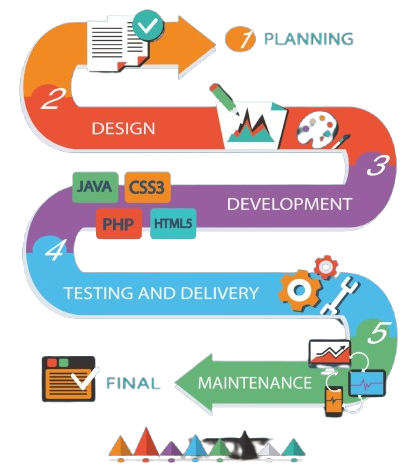
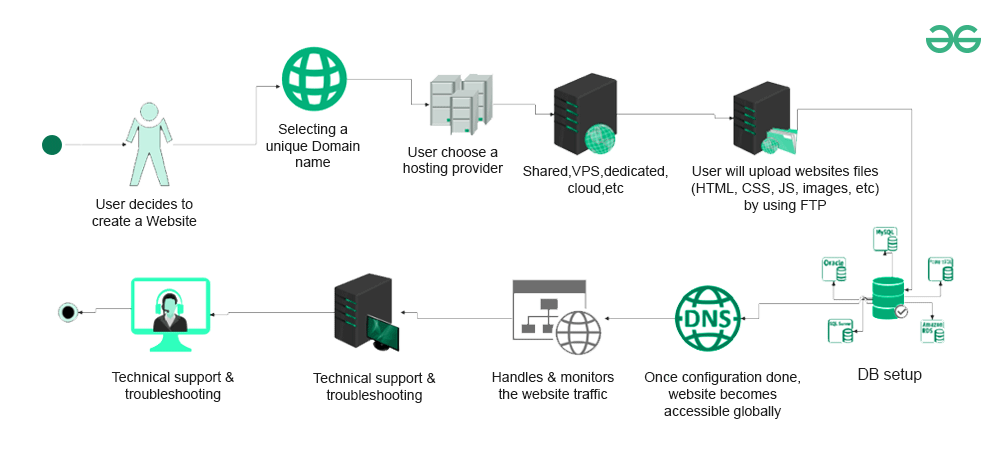
The basic process is:

  1. Learn the basics of websites
  2. Choose simple tools
  3. Create website pages
  4. Make your website live

Each step is explained clearly so beginners do not feel confused.

Tools You Will Use to Build a Website

You do not need complex software to build a website.
There are many simple and beginner-friendly tools available.

These tools:

  • Do not need coding
  • Are easy to use
  • Work on both mobile and computer

This website helps you understand which tools are best for beginners.

Start Learning Website Building Step by Step

If you are new to website building, start from the first lesson.
Learn at your own speed and build confidence step by step.

This website is made to help beginners understand website building in a simple way.
Start learning today and take your first step.

image
image
image

About This Website

This website is created to help beginners learn website building step by step.
It is made for people who have little or no knowledge about websites.

Many beginners feel confused when they hear words like domain, hosting, or website tools.
This website explains everything in simple English so anyone can understand.

Our goal is to help you learn website basics clearly and build confidence.
You do not need coding skills or technical experience to start learning here.

image

What We Teach You on This Website

This website teaches you how to build a website from the beginning.

You will learn about:

  • What a website is
  • What a domain name is
  • What hosting means
  • How domain and hosting work together
  • How a website becomes live on the internet

Each topic is explained step by step using easy examples so beginners do not feel confused.

What Is a Domain Name?

A domain name is the address of your website on the internet.
It is what people type in the browser to visit your website.

For example:
example.com is a domain name.

A domain helps people find your website easily.
Without a domain name, users cannot visit your website.

On this website, you will learn how to choose and understand domain names in simple words.

What Is Website Hosting?

Website hosting is the place where your website files are stored.
It is like a home for your website on the internet.

When someone opens your website, hosting shows your website to them.
Every website needs hosting to work online.

This website explains hosting in a beginner-friendly way so you understand:

  • Why hosting is needed
  • How hosting works
  • How hosting and domain connect

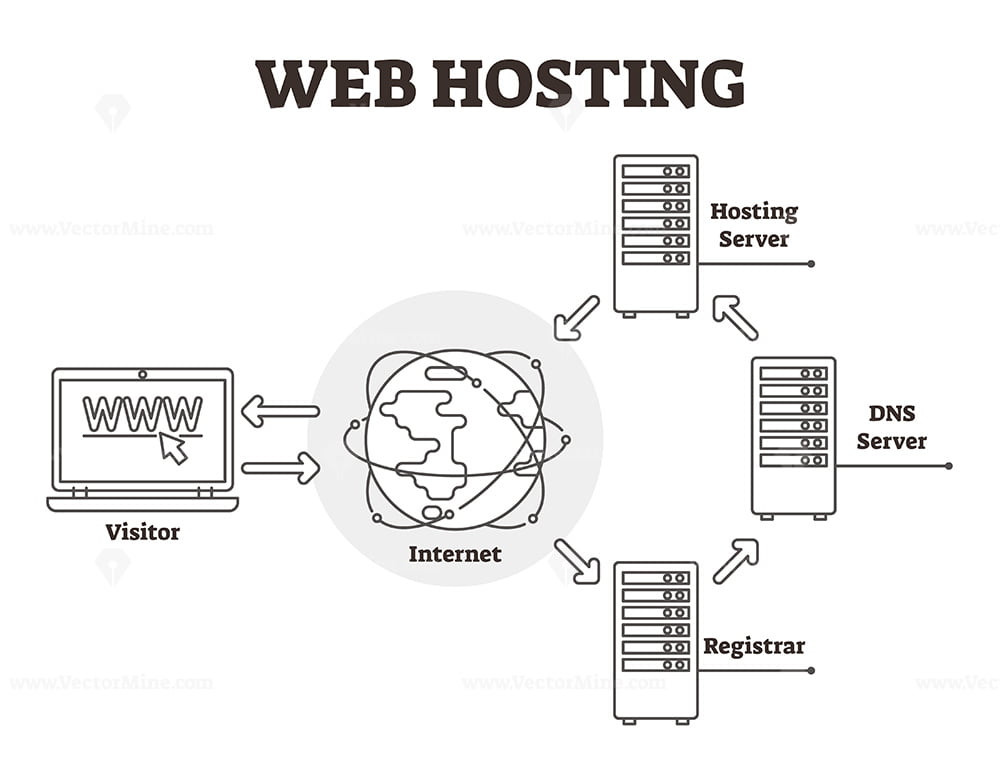
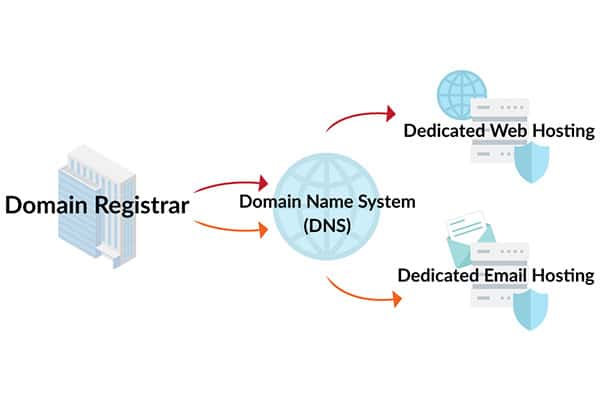
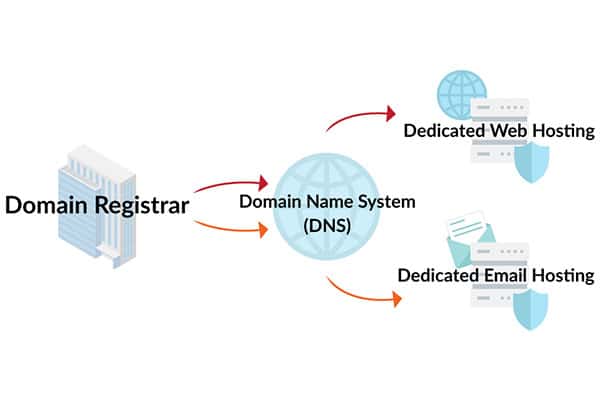
How Domain and Hosting Work Together?

This website teaches you how to build a website from the beginning.

A domain and hosting work together to make a website live:

  • Domain = website address
  • Hosting = place where website lives

When both are connected, your website becomes available on the internet.
This website explains this process step by step so beginners can understand easily.

You do not need to learn everything at once.
Each step is explained slowly and clearly.

Tools Used to Build a Website

You do not need coding tools to build a website.
There are simple tools made for beginners.

These tools help you:

  • Create website pages
  • Add text and images
  • Make your website live

This website introduces beginner-friendly tools and explains how they are used step by step.

How to Start Learning Website Building?

If you are new, do not worry.
Start learning step by step.

The right order is:

  1. Understand what a website is
  2. Learn about domain names
  3. Learn about hosting
  4. Understand how everything works together
  5. Start building your website

This website is designed to guide you from the first step to the final step in simple English.

image

What Is a Domain Name?

A domain name is the address of your website on the internet, people type this address in a browser to visit your website.

Example of domain names:

  • google.com
  • amazon.com
  • yourname.com

Without a domain name, people cannot find your website.

Why Do You Need a Domain Name?

You need a domain name because:

  • It gives your website an identity
  • People can easily remember your website
  • It looks professional

A domain name is the first step to build a website.

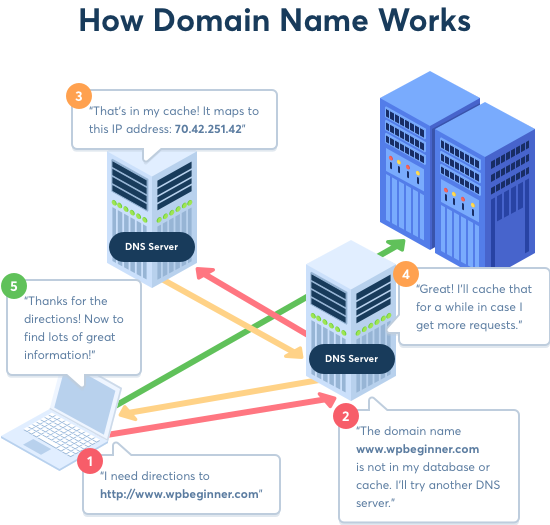
How a Domain Works

You type domain name (example.com)

                      ↓

Internet finds the server

                      ↓

Website opens in browser

How to Choose a Domain Name

(Easy Tips)

  • Keep it short
  • Easy to read and remember
  • Avoid numbers and symbols
  • Use .com if possible

Example:

✔ mywebsite.com

❌ my-website-123.net

How to Buy a Domain Name?

Step 1:

  • Go to a domain selling website
  • (Search on Google: buy domain name)

Step 2:

  • Type your domain name in the search box
  • (example: mywebsite.com)

Step 3:

  • Check if the domain is available

Step 4:

  • Add the domain to cart

Step 5:

  • Create an account

Step 6:

  • Make payment

After payment, the domain becomes yours.

What Happens After Buying a Domain?

After buying a domain:

  • You own the website address
  • Domain is active for 1 year
  • You can connect it with hosting

Buying a domain does not create a website.

It only gives you the website address.

What Is Website Hosting?

Website hosting is the place where your website lives.
All website files like text, images, and pages are stored in hosting.

When someone opens your website, hosting shows the website to them.

Why Do You Need Hosting?

You need hosting because:

  • A website needs a place to stay
  • Hosting keeps your website online
  • Without hosting, your website cannot open

Every website needs hosting to work.

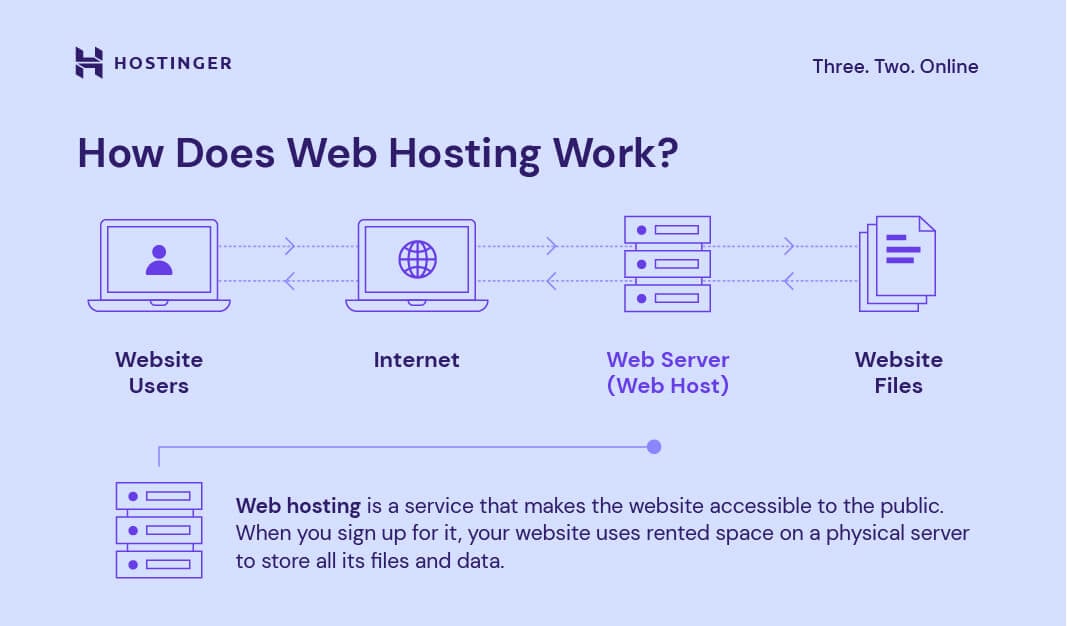
How Hosting Works

User types domain name

                       ↓

Domain connects to hosting

                       ↓

Hosting shows website files

                       ↓

Website opens on screen

Types of Hosting

For beginners, only Shared Hosting is enough.

Other types (for knowledge only):

  • Shared Hosting (best for beginners)
  • VPS Hosting
  • Dedicated Hosting

Beginners should start with Shared Hosting only.

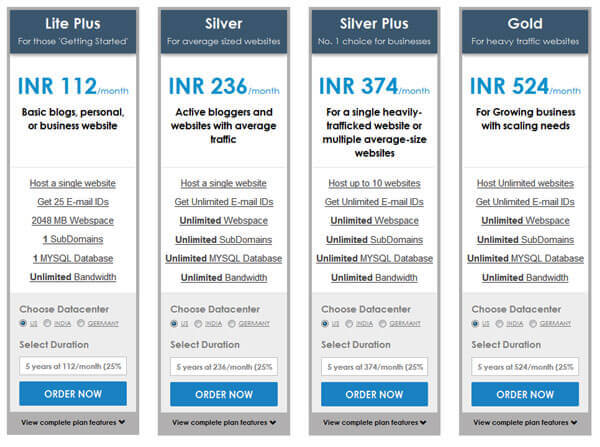
How to Buy Hosting?

image
image

Step 1:

  • Search on Google: buy web hosting

Step 2:

  • Open a hosting website

Step 3:

  • Choose Shared Hosting plan

Step 4:

  • Select time period (1 year is best)

Step 5:

  • Create account

Step 6:

  • Make payment

After payment, hosting account is ready.

What Do You Get After Buying Hosting?

For beginners, only Shared Hosting is enough.

After buying hosting, you get:

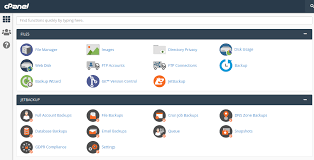
  • Hosting control panel
  • Space for website files
  • Email from hosting company
  • Option to install WordPress

Hosting is where your website is actually created.

How Domain and Hosting Work Together (Final Chart)

image

Domain Name (Address)

                   +

Hosting (Website Files)

                    ↓

Website Goes Live

Domain + Hosting = Website live on internet

VERY IMPORTANT FOR BEGINNERS

  • Domain alone ≠ website
  • Hosting alone ≠ website
  • Both are required together

How to Install WordPress and Connect Domain with Hosting

First, Understand This (Most Important)

To make a website live on the internet, three things are required:

Domain + Hosting + WordPress = Website

Let us understand this with a real-life example

Real-Life Example

                ↓

Imagine you want to open a shop:

Website Thing

Real-Life Example

Domain

Shop address

Hosting

Shop building

WordPress

Furniture & tools inside shop

If you have only the address but no shop building, nothing will open.
If you have a building but no address, no one can find it.
If you have both, plus furniture, your shop works.

Same rule applies to websites.

What Is a Domain Name

A domain name is the address of your website.

Example:

When you type this in your browser:

             ↓

google.com

You reach Google’s website.

Here:

  • google.com = domain name

Other examples:

  • amazon.com
  • facebook.com
  • yourname.com

Without a domain name, people cannot visit your website.

Why You Need a Domain

You need a domain because:

  • People remember your website easily
  • Your website looks professional
  • Anyone can visit your website anytime

Example:
If your business name is Akmal Tech, a good domain could be:

                 ↓

akmaltech.com

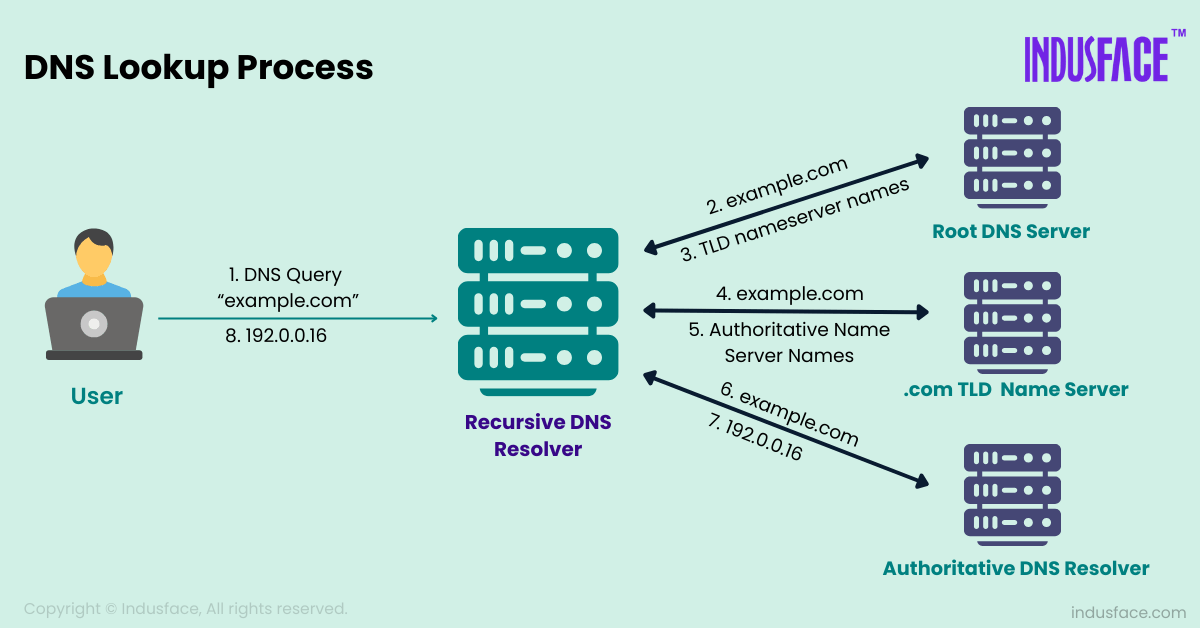
How a Domain Works

image

You type: mywebsite.com

        ↓

Internet finds the website location

        ↓

Website opens on your screen

How to Buy a Domain

(Step by Step with Example)

Step 1: Go to a Domain Website

  • Search on Google
  • buy domain name
  • You will see many websites selling domains

Step 2: Search Your Domain Name

  • Example:

            ↓

  • myfirstwebsite.com
  • If it is available, you can buy it

Step 3: Add to Cart and Pay

  • Create an account
  • Pay online
  • Domain is now yours for 1 year

Important:
Buying a domain does NOT create a website.
It only gives you the address.

What Is Website Hosting

(Step by Step with Example)

Hosting is the place where your website files are stored.

Real-Life Example:

              ↓

If your website is a shop:

  • Domain = shop address
  • Hosting = shop building

Inside hosting, your website stores:

  • Text
  • Images
  • Pages
  • Videos

Why Hosting Is Needed

Without hosting:

  • Website has nowhere to live
  • Website cannot open
  • Domain shows nothing

Every website in the world needs hosting.

How Hosting Works

(Simple Flow)

image

User types website address

             ↓

Domain connects to hosting

             ↓

Hosting sends website files

             ↓

Website opens

How to Buy Hosting

(Step by Step with Example)

Step 1: Search on Google

  • buy web hosting

Step 2: Choose a Beginner Plan

Choose:

       ↓

  • Shared Hosting (best for beginners)
  • Do NOT worry about big plans.

Step 3: Pay and Create Account

After payment, you will get:

  • Login details
  • Hosting control panel
  • Email with instructions

Hosting is now ready.

How Domain and Hosting Connect Together

image

Simple Explanation

Domain (Address)

          +

Hosting (Website Files)

          ↓

Website Goes Live

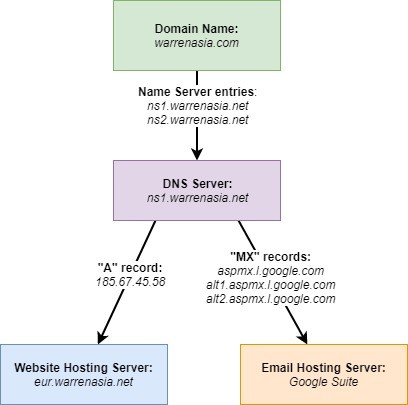
How to Connect Domain with Hosting

(Step by Step with Example)

Step 1: Login to Domain Website

  • Open domain account
  • Click on your domain

Step 2: Open DNS / Nameserver Settings

You will see something like:

  • DNS
  • Nameservers

Step 3: Add Hosting Nameservers

Hosting company gives something like:

ns1.hostingcompany.com

ns2.hostingcompany.com

  • Remove old values
  • Paste these
  • Save

Wait time: 5 minutes to 24 hours

What Is WordPress?

WordPress is a tool to build websites without coding.

Example:

        ↓

Think of WordPress like:

  • Microsoft Word (for writing)
  • But for websites

You can:

  • Write text
  • Add images
  • Create pages
  • Change design

More than 40% of websites use WordPress.

How to Install WordPress

(Very Easy)

Step 1: Login to Hosting Account

Open hosting website → Login → Control Panel

Step 2: Find WordPress Installer

Look for:

  • WordPress Installer
  • One-Click Install
  • Softaculous

Step 3: Click Install

  • Select your domain
  • Leave folder empty
  • Enter website name

Step 4: Create Login Details

Example:

        ↓

  • Username: admin
  • Password: strong password
  • Email: your email

Save this carefully.

Step 5: Finish Installation

Wait 1–2 minutes.
WordPress will be installed.

Done!

image
image

How to Login to WordPress

Open browser and type:

                  ↓

yourdomain.com/wp-admin

Enter username & password

You will see the WordPress dashboard

Check If Website Is Live

Open browser and type:

               ↓

yourdomain.com

If a page opens, website is live ✅

COMMON BEGINNER DOUBTS

Website not opening?

  • Wait 24 hours
  • Check nameservers

Afraid of mistakes?

  • Don’t worry
  • Everything can be changed later

FINAL STEP SUMMARY

→ Buy Domain

→ Buy Hosting

→ Connect Domain to Hosting

→ Install WordPress

→ Login to WordPress

→ Website Live

FINAL MESSAGE FOR BEGINNERS

You do NOT need:

  • Coding
  • Technical degree
  • Extra skills

If you can use:

  • Mobile
  • Computer
  • Internet

You can build a website.

Themes, Pages, and SEO in WordPress

WHAT IS A WORDPRESS THEME?

A WordPress theme controls how your website looks.

It decides:

  • Colors
  • Layout
  • Font style
  • Where text and images appear

Theme = Design of your website

Real-Life Example,

              ↓

Think of a house:

Website

House

Content (text, images)

Furniture

Theme

House design (color, rooms)

You can change the theme without losing your content,
Same furniture, new house design.

Example,

        ↓

  • Same content
  • Theme A → looks like a blog
  • Theme B → looks like a business site

How to Choose a Theme

                     ↓

Choose a theme that is:

  • Simple
  • Clean
  • Fast
  • Mobile friendly

❌ Don’t choose heavy or flashy themes

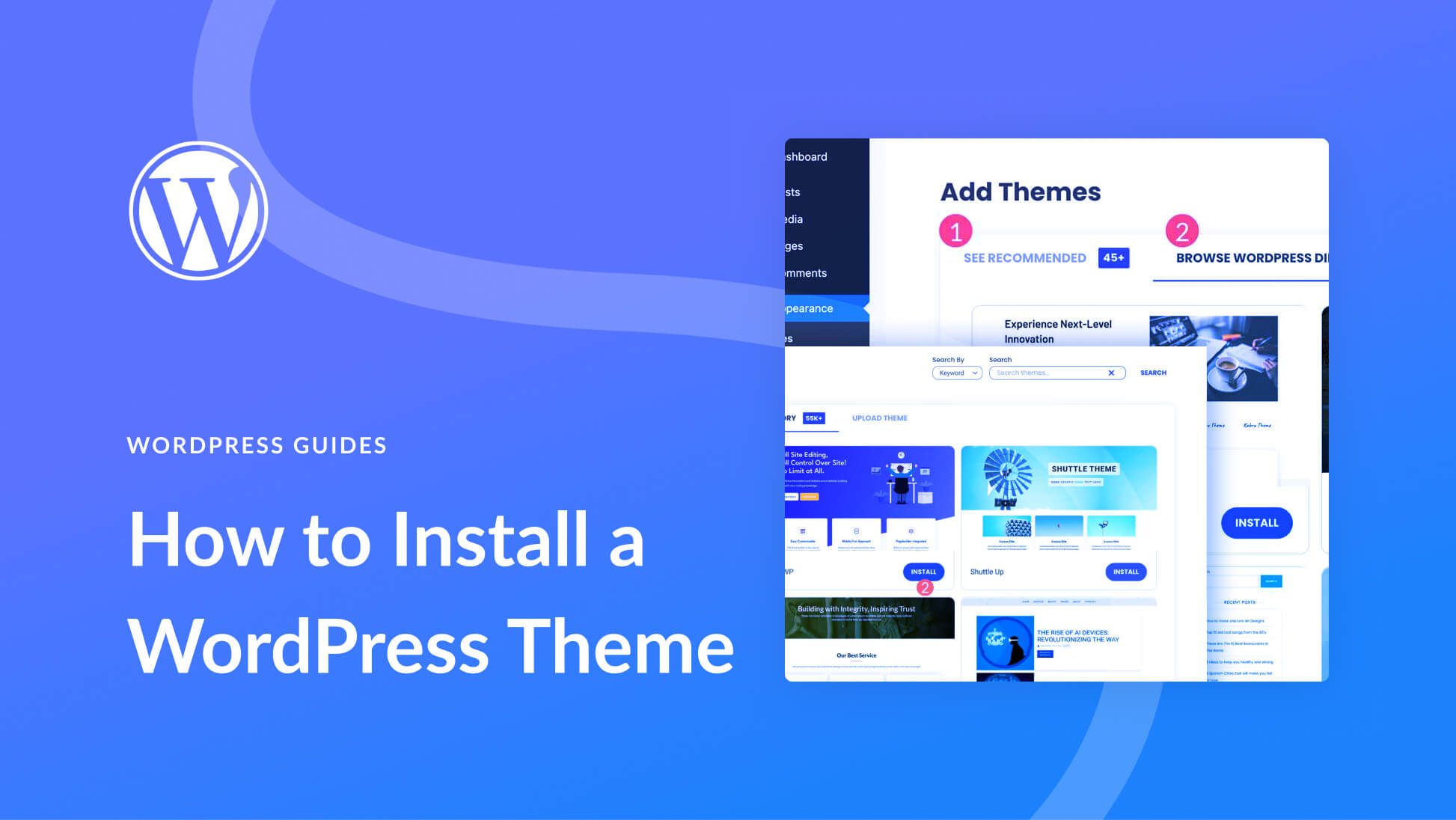
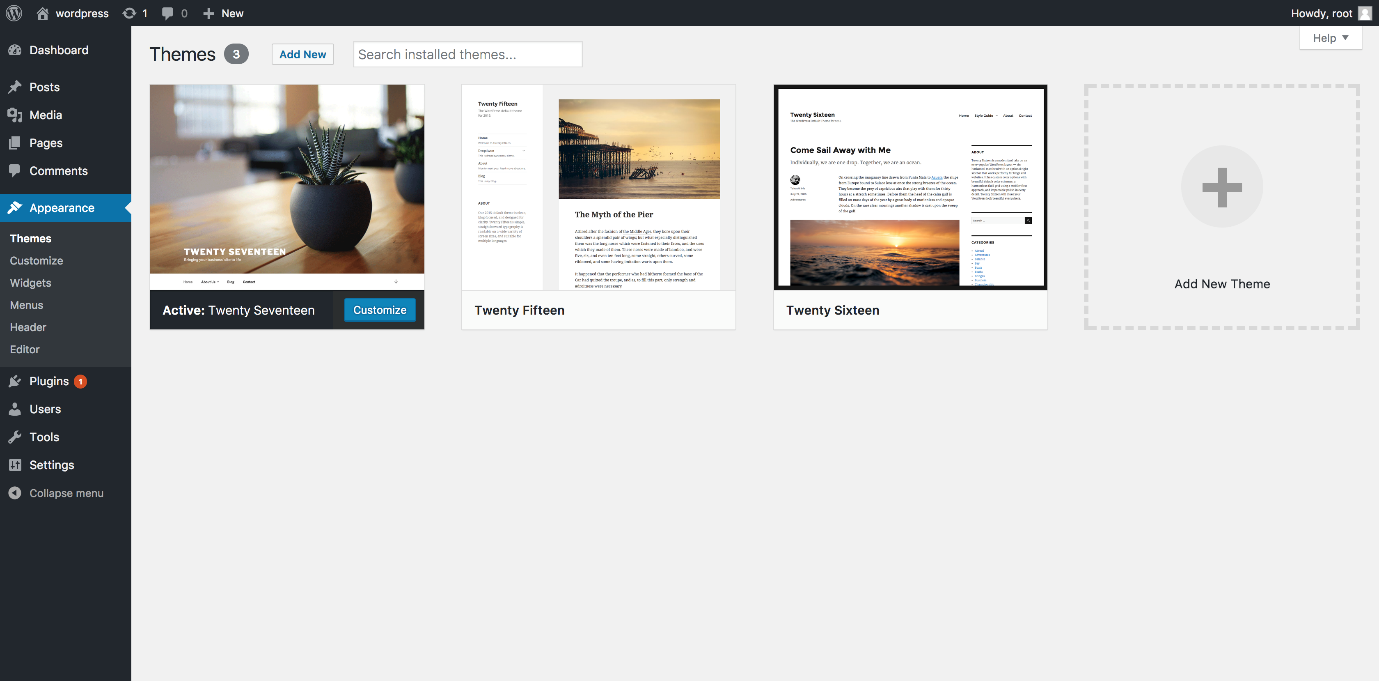
How to Install a Theme (Simple Steps)

  1. Go to WordPress Dashboard
  2. Click Appearance → Themes
  3. Click Add New
  4. Search a theme
  5. Click Install → Activate

Done. Theme is applied.

image
image

WHAT ARE PAGES IN WORDPRESS?

A page is a fixed part of your website.

Common pages:

  • Home
  • About
  • Services
  • Blog
  • Contact

Pages do not change often.

Real-Life Example,

                ↓

Think of a book:

Website

Book

Website

Book

Pages

Chapters

Each chapter has a fixed purpose.

Example Pages Explained,

                      ↓

Home Page, Main page visitors see first.

About Page, Explains:

  • Who you are
  • What website is about

Services Page, Explains:

  • What you teach
  • What help you provide

Blog Page, Used to:

  • Write articles
  • Get Google traffic

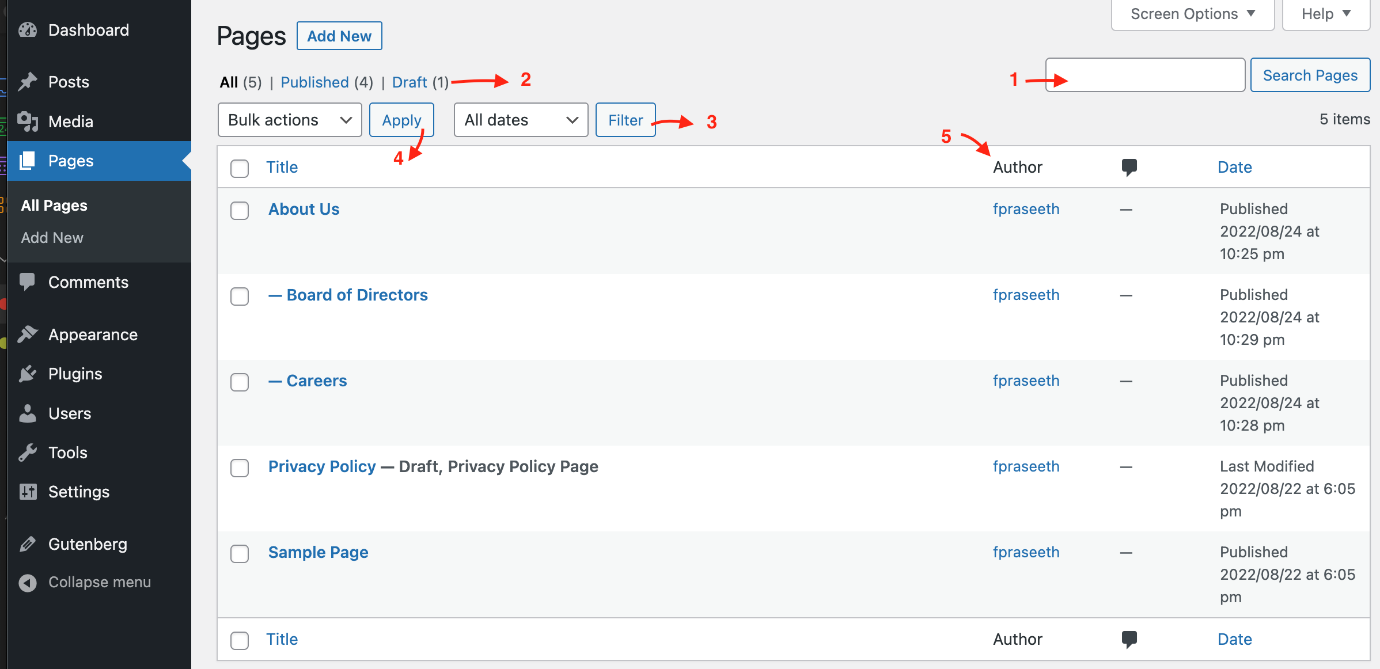
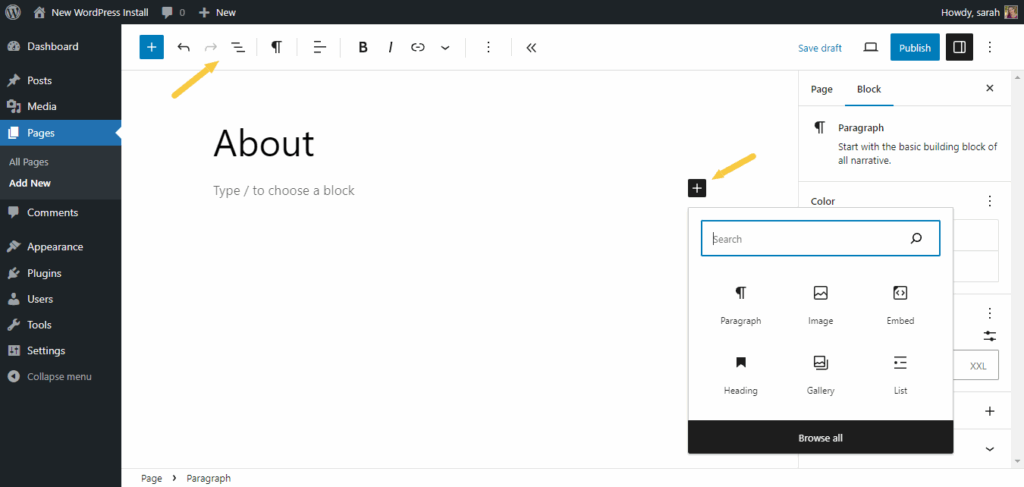
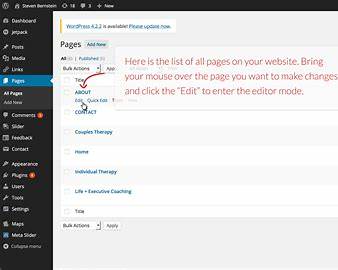
How to Create a Page (Very Easy)

  1. WordPress Dashboard → Pages
  2. Click Add New
  3. Write title and content
  4. Click Publish

Page is live.

image

WHAT IS SEO?

(MOST IMPORTANT FOR TRAFFIC)

SEO helps your website appear on Google.

SEO means:
Writing content in a way Google understands
So people find your site when they search

Real-Life Example,

               ↓

Think of Google as a library:

  • SEO = labeling your book properly
  • Better label = easier to find

Example,

       ↓

If someone searches:

how to build a website

If your page is written properly, Google shows your website.

BASIC SEO RULES

              ↓

Rule 1: One Topic Per Page

❌ Mix everything
✅ One clear topic

Example:

  • Page 1: What is a website
  • Page 2: What is a domain

Rule 2: Use Simple Headings

Use:

  • One H1 (main heading)
  • H2 for sections

Example:

H1: What Is a Website?

H2: Why Websites Are Important

H2: Examples of Websites

Rule 3: Write for Humans, Not Google

❌ Difficult English
✅ Simple English

Google loves content that people understand.

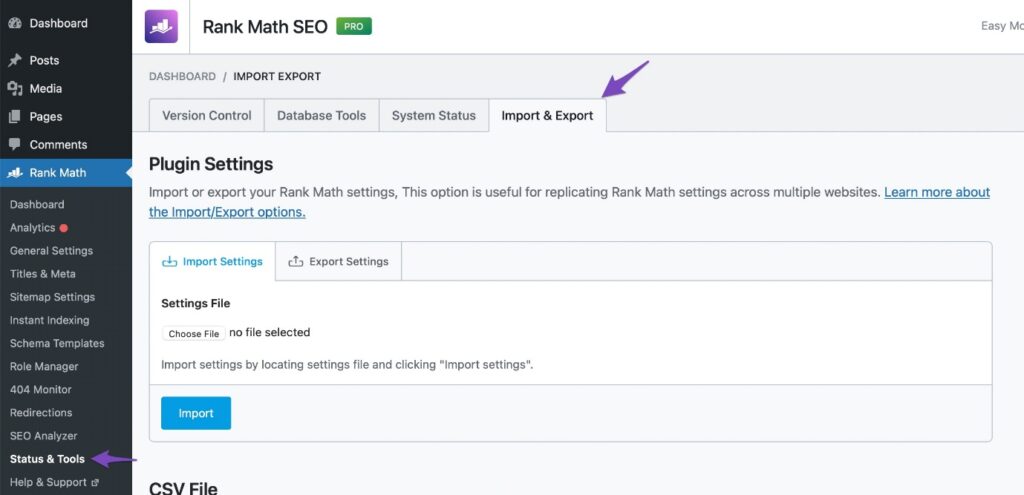
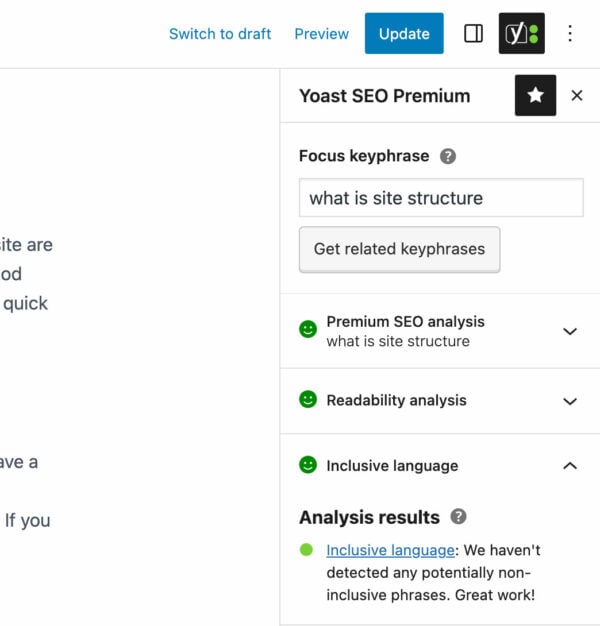
Rule 4: Use SEO Plugin (Very Easy)

Install:

      ↓

  • Rank Math
    OR
  • Yoast SEO

They guide you step by step.

What SEO Plugin Asks You

  • Page title
  • Short description
  • Focus keyword

Example:

        ↓

Title: What Is a Website? Simple Guide

Keyword: what is a website.

image
image

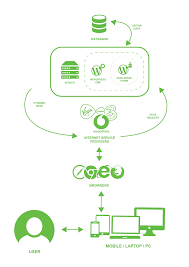
HOW EVERYTHING WORKS TOGETHER

(FINAL UNDERSTANDING)

Theme → Controls design

Pages → Show content

SEO → Brings traffic

All three together make a successful website.
image
image

VERY IMPORTANT FOR BEGINNERS

You do NOT need:

  • Coding
  • Technical knowledge
  • Expensive tools

You ONLY need:

  • Patience
  • Step-by-step learning

FINAL SUMMARY

Theme = Look

Pages = Content

SEO = Traffic

Contact us

Name
image
Scroll to Top